
Fictional project · Illustrated walkthrough · No account needed
A fictional walkthrough: from decision to handover.
A small product design team is revising a desk lamp after a prototype test. Follow the decision in the studio, then see the delivery context prepared for the client.
Pivot desk lamp
P3 · Prototype revision BDesign Notes · Team checklist
The hinge loosened during prototype testing. Increase the contact surface in revision B and check the next prototype.
Closing note · Client can read this
Revision B widens the hinge contact surface. Please review the updated connection before the next prototype test.
Pivot desk lamp
P3 · Prototype revision BClosing note
Revision B widens the hinge contact surface. Please review the updated connection before the next prototype test.
Open the delivery resources for this phase.
Read revision B summary →Demo revision documentSource-file permissions must also allow the recipient to open the files.
Illustrated demo, not a live client account. All project data is fictional. The Design Notes checklist stays with the team; a saved phase closing note can be read by the invited Client. The team writes that note.
Demo delivery document · 9 November 2026 · Revision B
Pivot desk lamp: revision summary
What changed?
The hinge contact surface was widened in revision B.
Why?
The first prototype loosened during adjustment testing.
What happens next?
Review the updated connection and repeat the adjustment test on the next prototype.
Delivery scope: this demonstration includes the written revision summary above. CAD models, test reports and production-ready files are not provided.
Before you share a real phase
- Check the recipient’s project access. Confirm that the intended client can reach the relevant project and phase.
- Check each source link. Access to Designlogger does not grant access to a private Drive folder, Figma file or other external resource.
- Choose a stable version when needed. For a fixed delivery, link to a dated export or a versioned source file. A live link can change after you send it.
Invited Clients sign in to view their authorized projects and non-deleted phases. The Root area is hidden from the Client interface. Sharing a phase sends an in-app notification; source-file access still depends on the original platform.
Actual product screens · Studio view
Real projects, organized by phase.
Screenshots from Formeta’s own studio workspace: three product design projects and a digital platform project. These show studio controls; a Client’s view has different permissions.
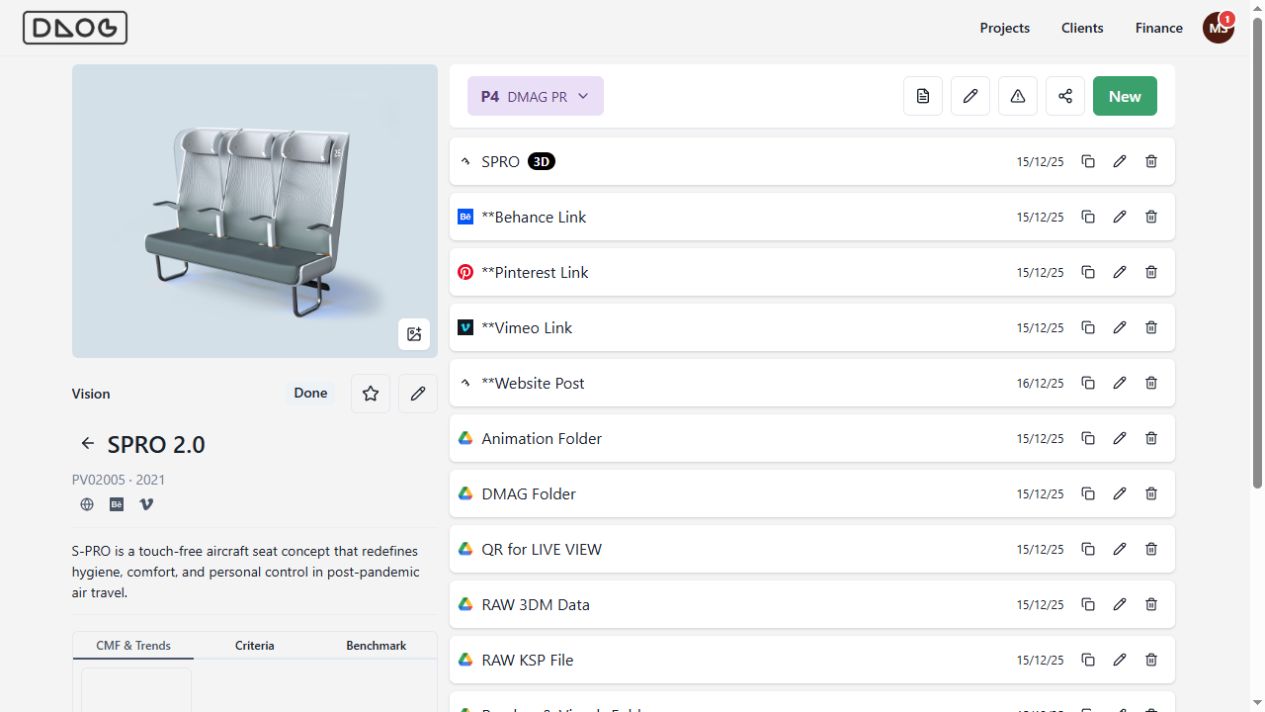
Product design · P4: DMAG PR. Project cover, phase selection and delivery resources.
View full-size screenshot →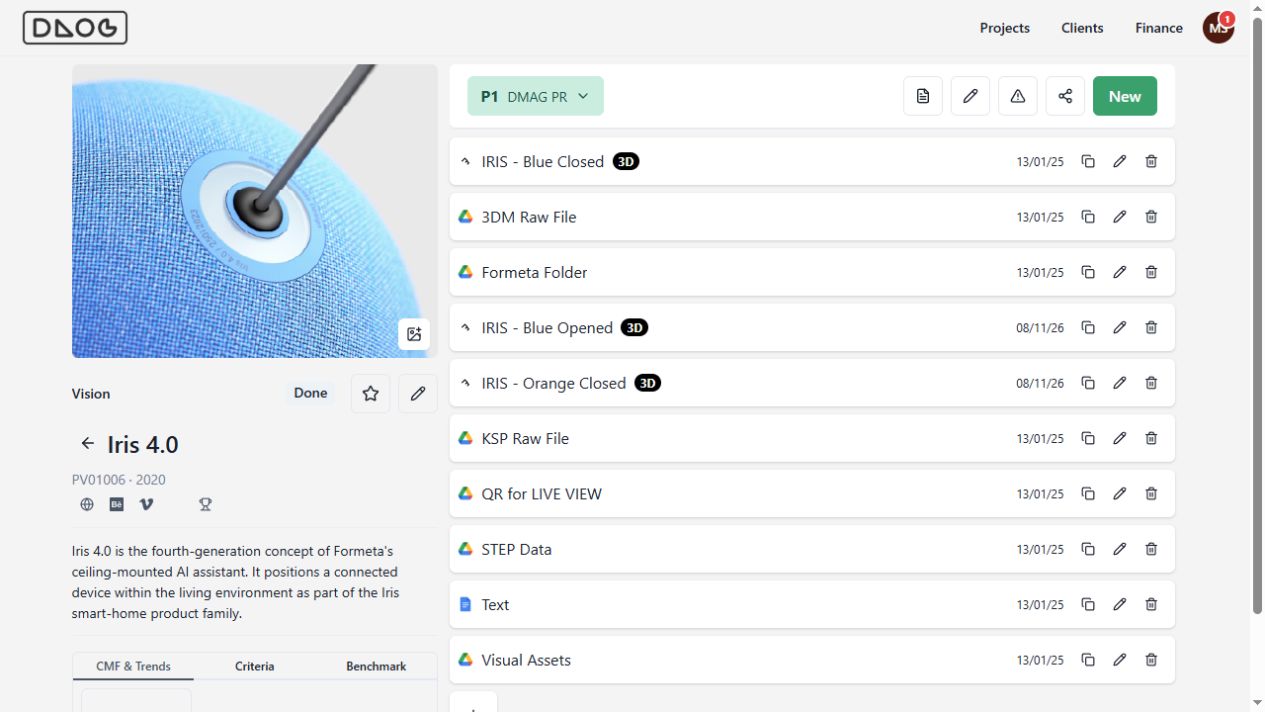
Product design · P1: DMAG PR. Product variants and phase resources in the studio workspace.
View full-size screenshot →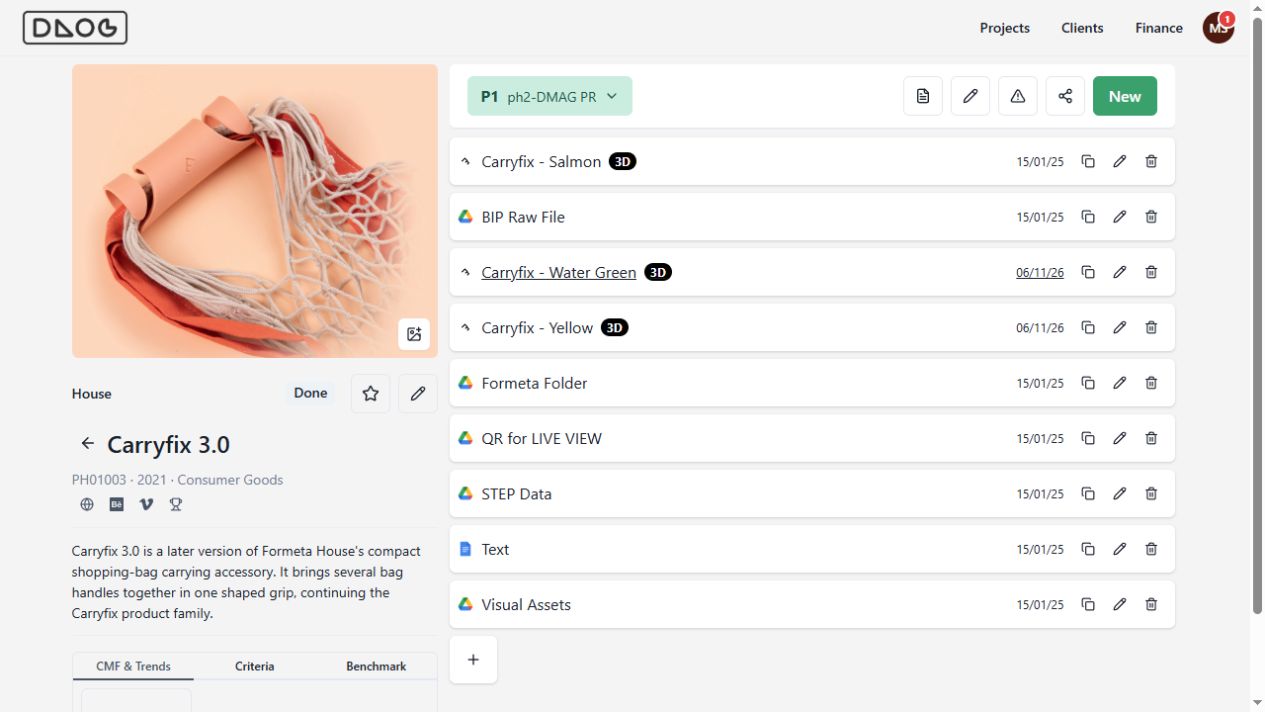
Product design · P1. A consumer product project with linked variants and delivery resources.
View full-size screenshot →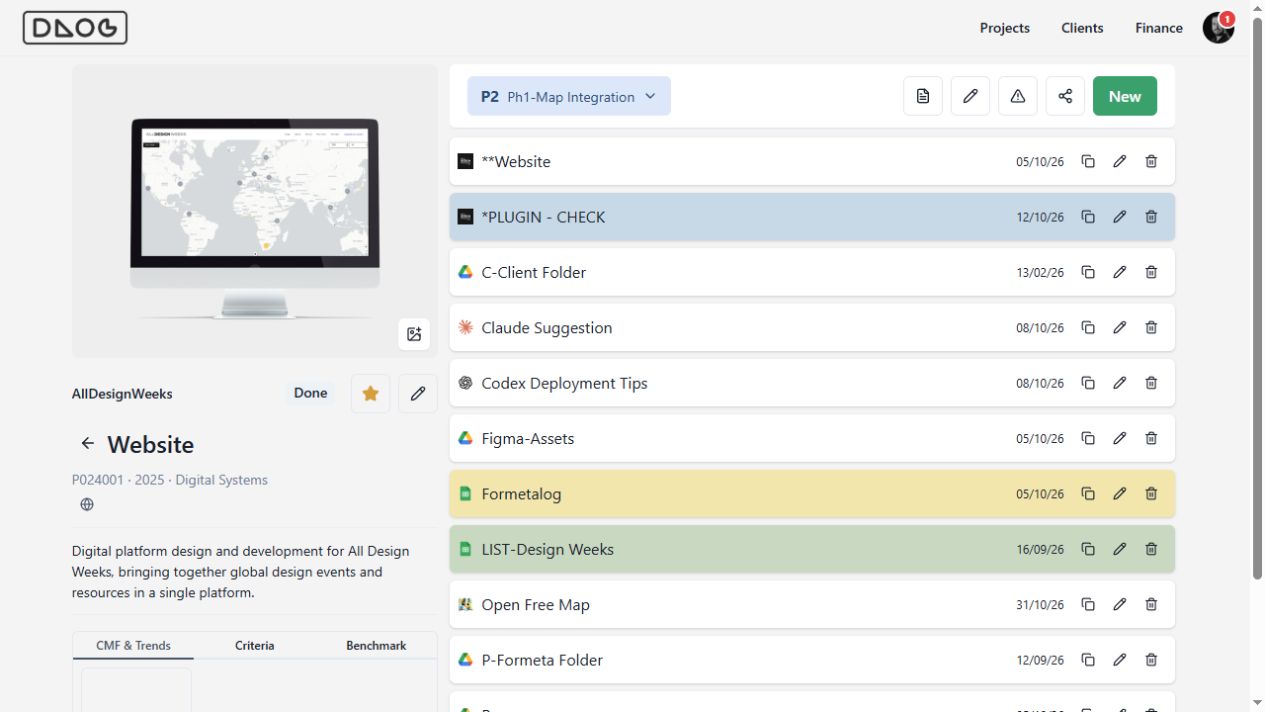
Digital systems · P2: Map Integration. Website, Figma and research references grouped in one phase.
View full-size screenshot →