
Beta User Guide
Start here to understand the workflow, complete your first setup, and troubleshoot common issues.
This guide walks you through the Designlogger beta experience step by step, from onboarding and first project setup to logging decisions and tracking milestones across phases. If you get stuck at any point, you will find clear explanations, best practices, and quick fixes to help you move forward without interrupting your workflow.
Account Activation
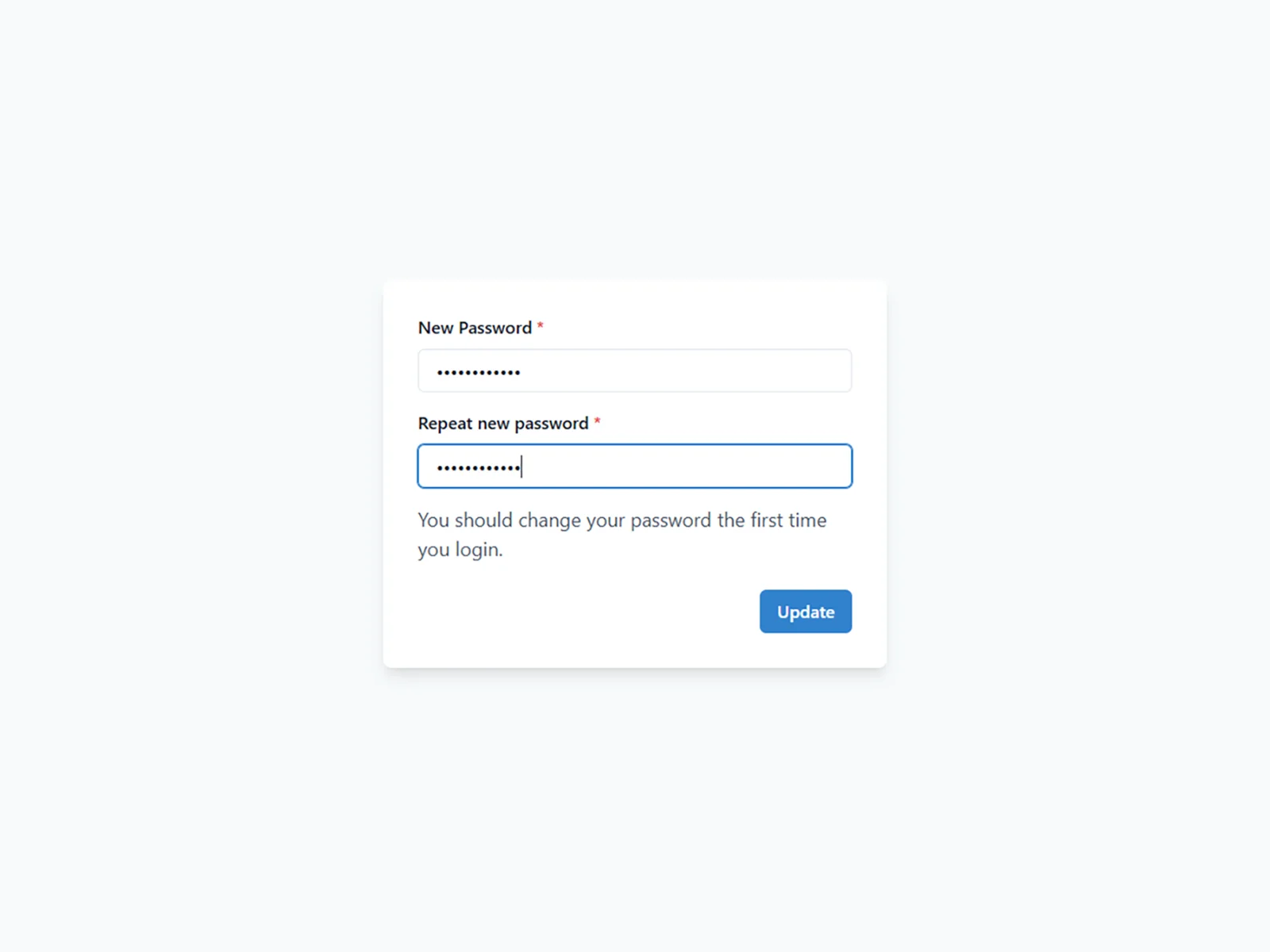
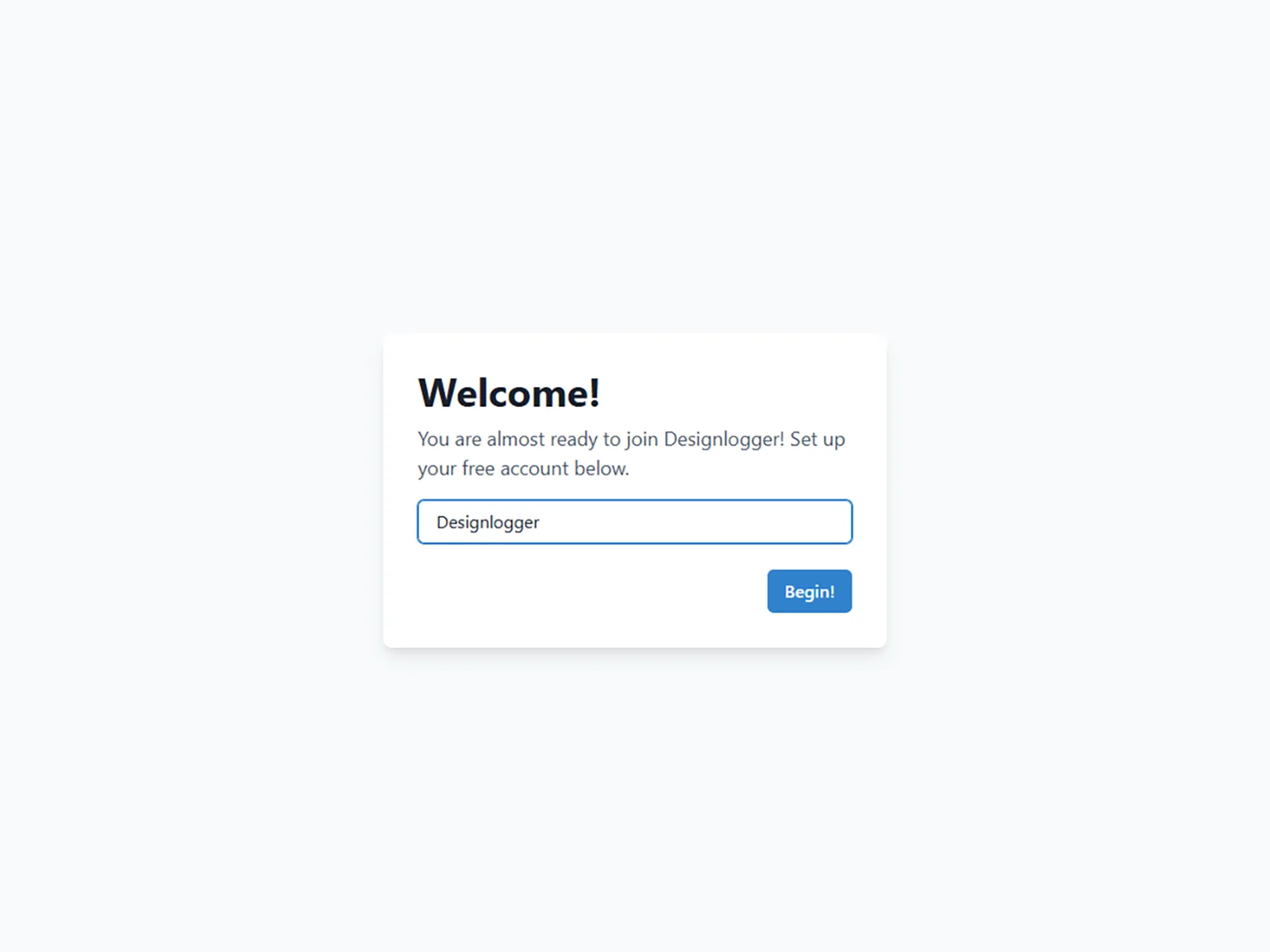
When you first sign in to Designlogger, the system will prompt you to create a password to activate your account. Once your password is set, you will be asked to create your workspace by entering a Workspace name.
After naming your workspace, your account becomes active and the platform is ready to use.
Steps
1- Sign in to your Designlogger account.
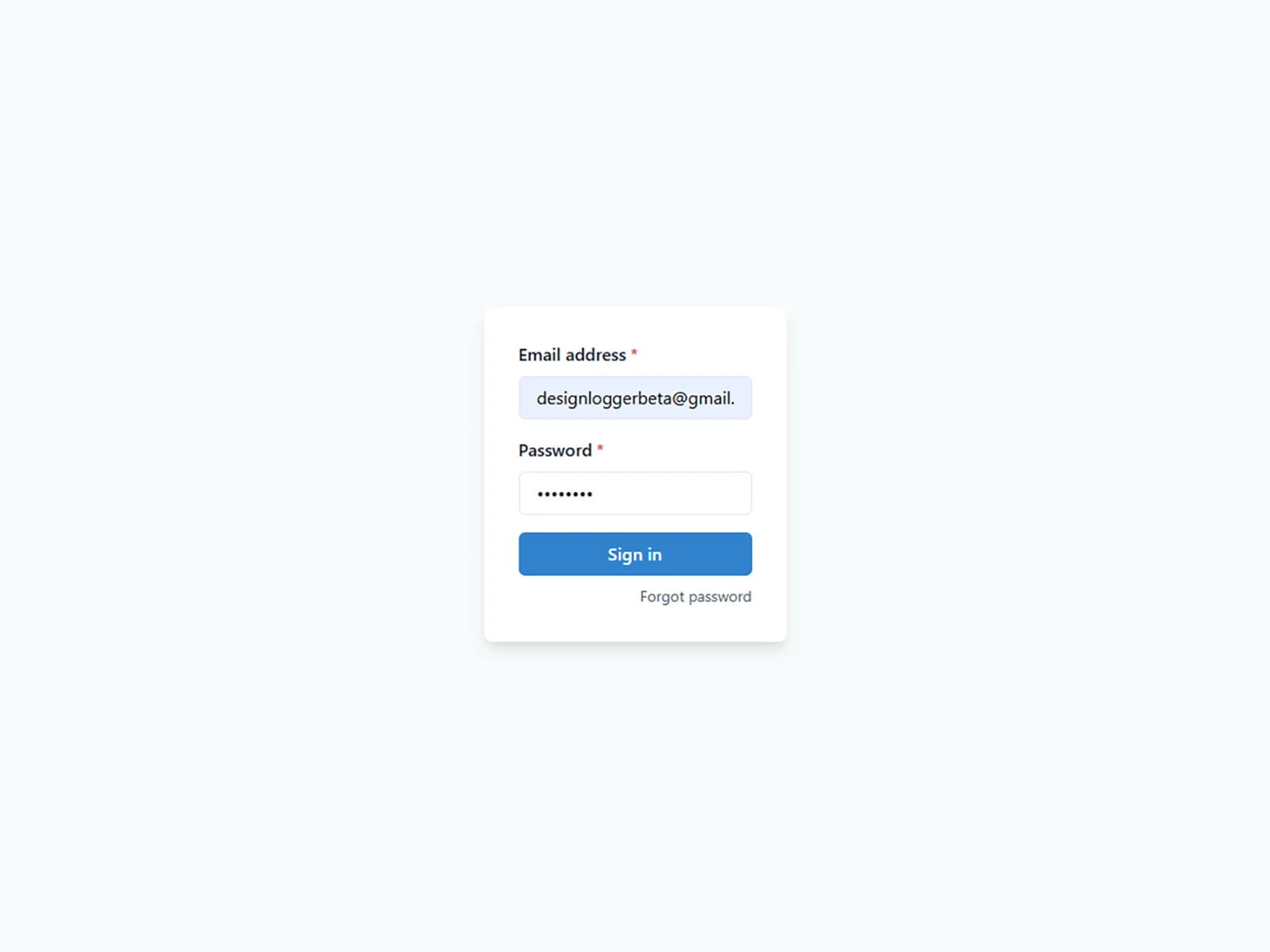
2- Follow the prompt to create a new password.
3- Enter a name for your Workspace.
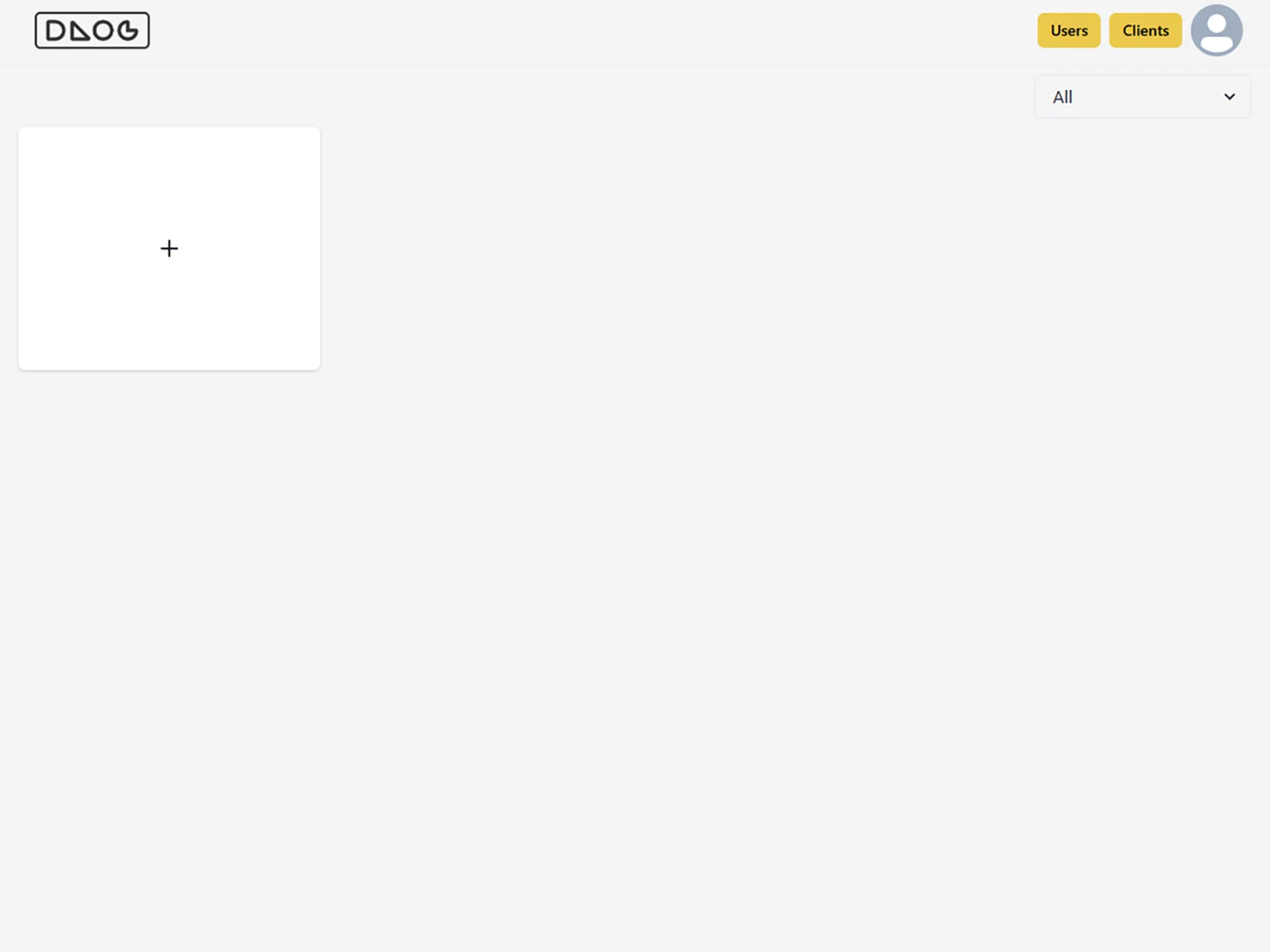
4- Once your Workspace is created, the dashboard will open and you can start using the system.
Add Your First Project
To add your first project in Designlogger, you first need to create a Client. Once a Client is created, you can assign projects to that Client and start tracking phases and milestones.
Steps
1- Click the Client button to open the Client page.
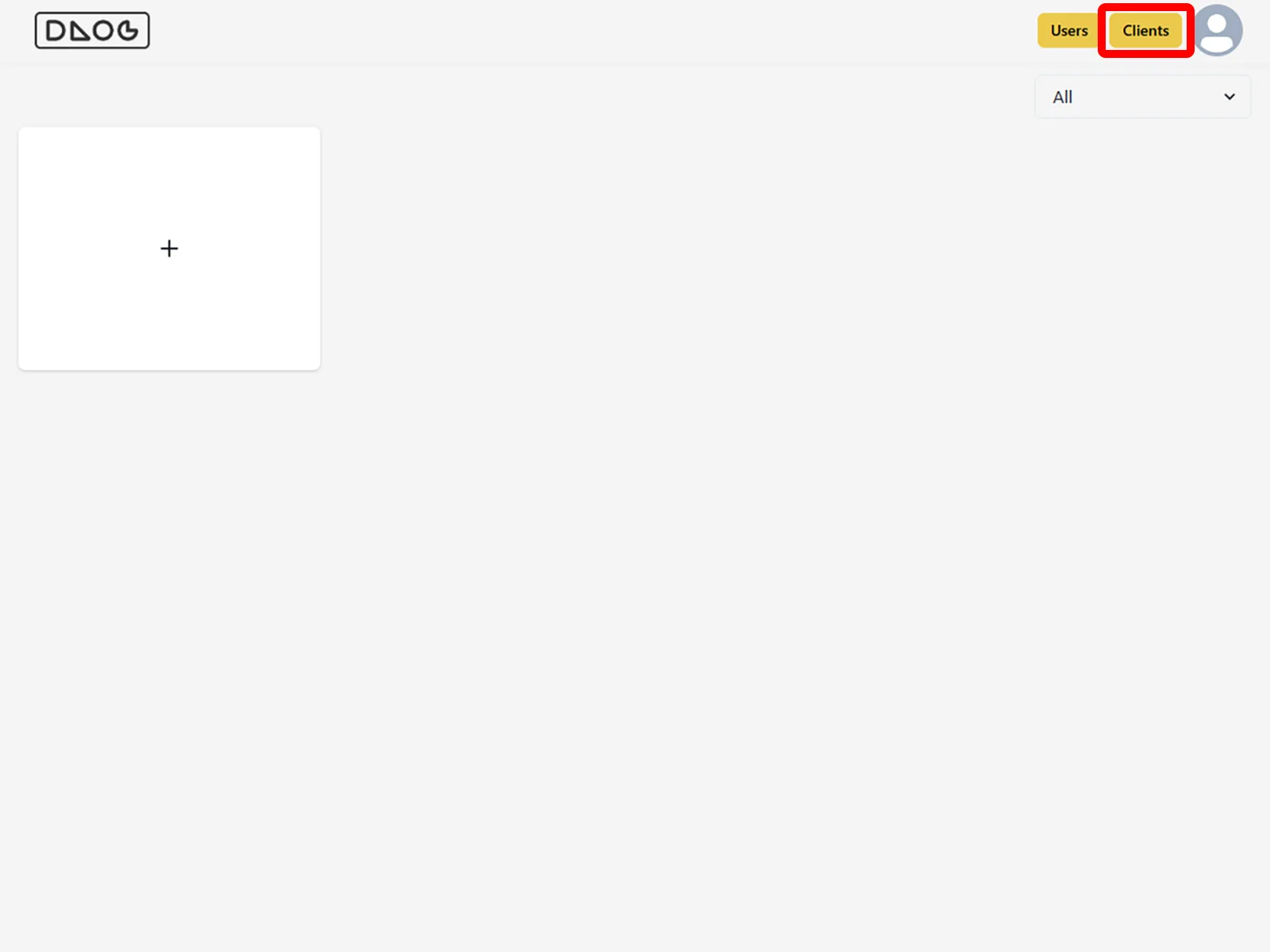
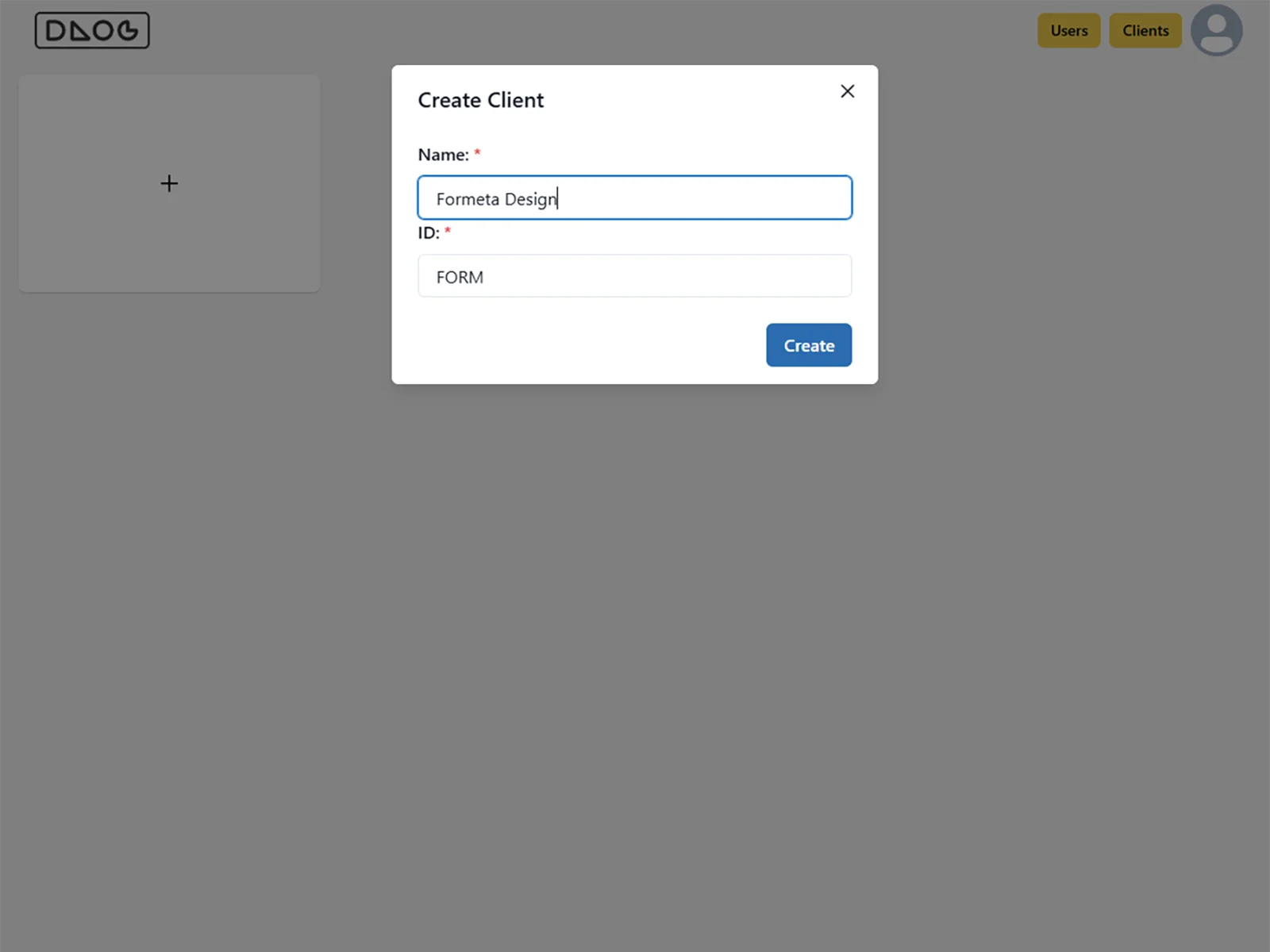
2- Click the + button to add a new Client. Enter a Client name and create the Client.
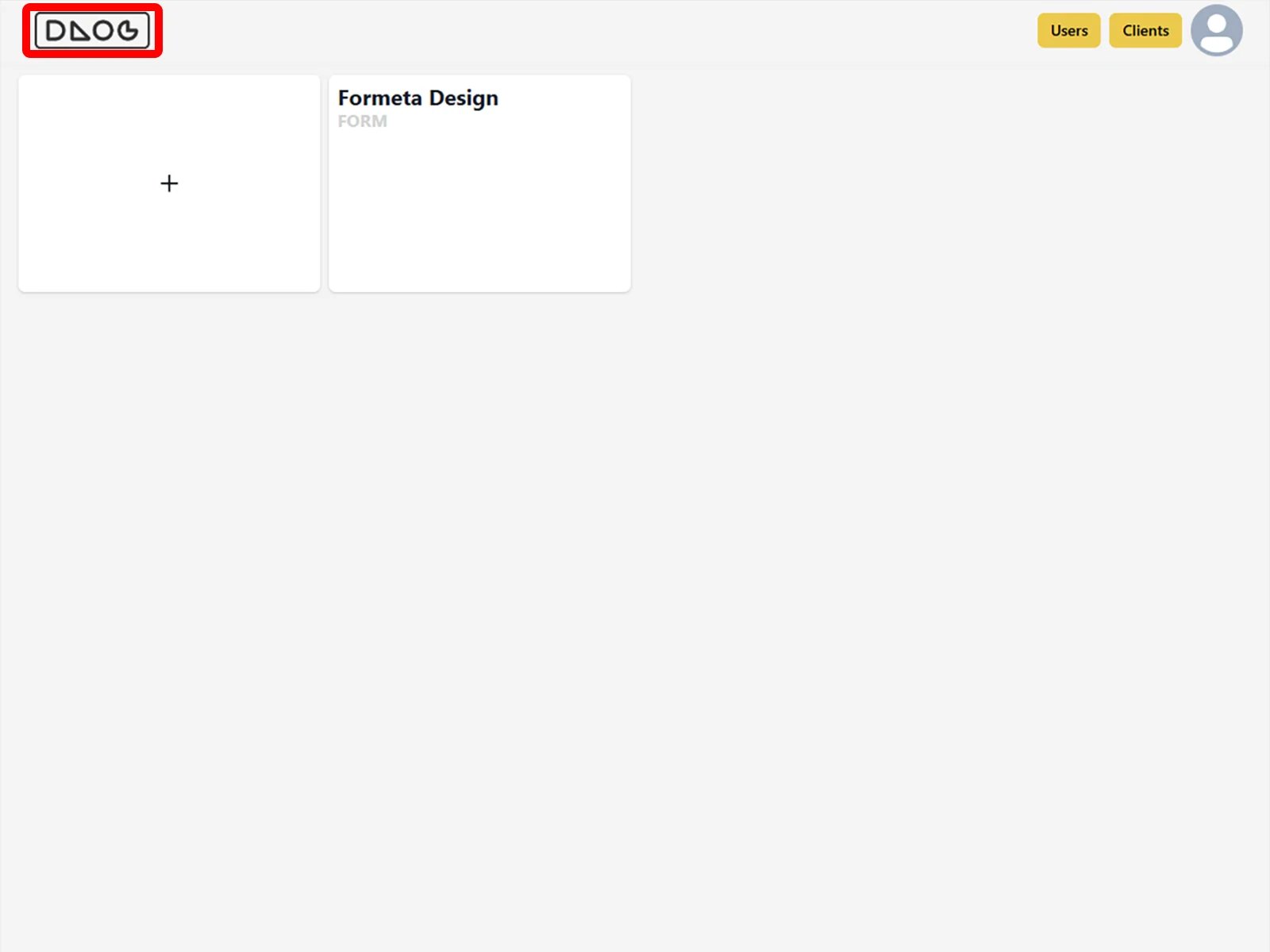
3- Click the Designlogger logo to return to the main dashboard.
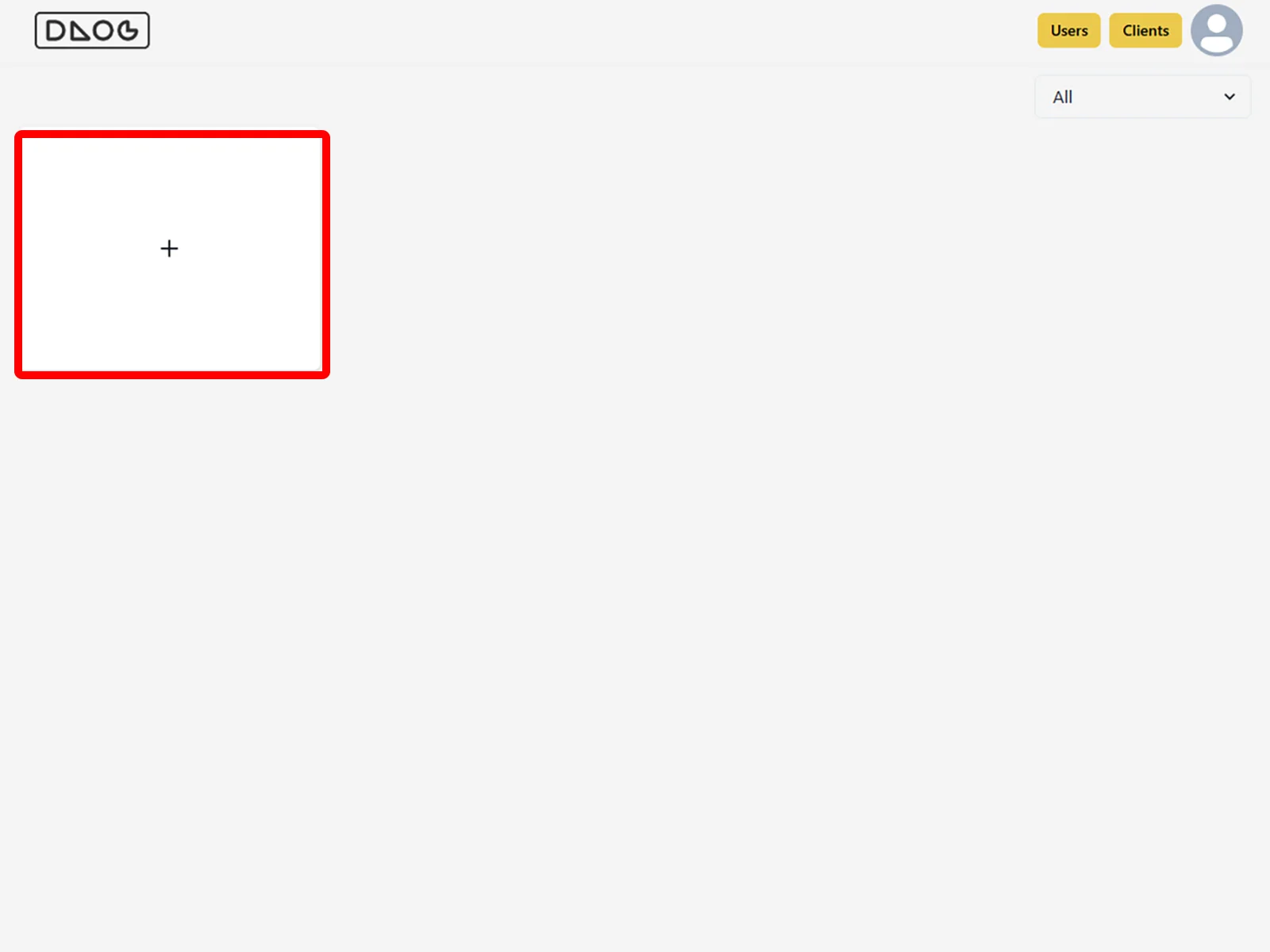
4- Click the + button to add a new project.
5- Enter the Client name, Project name, and Project description, then click Save.
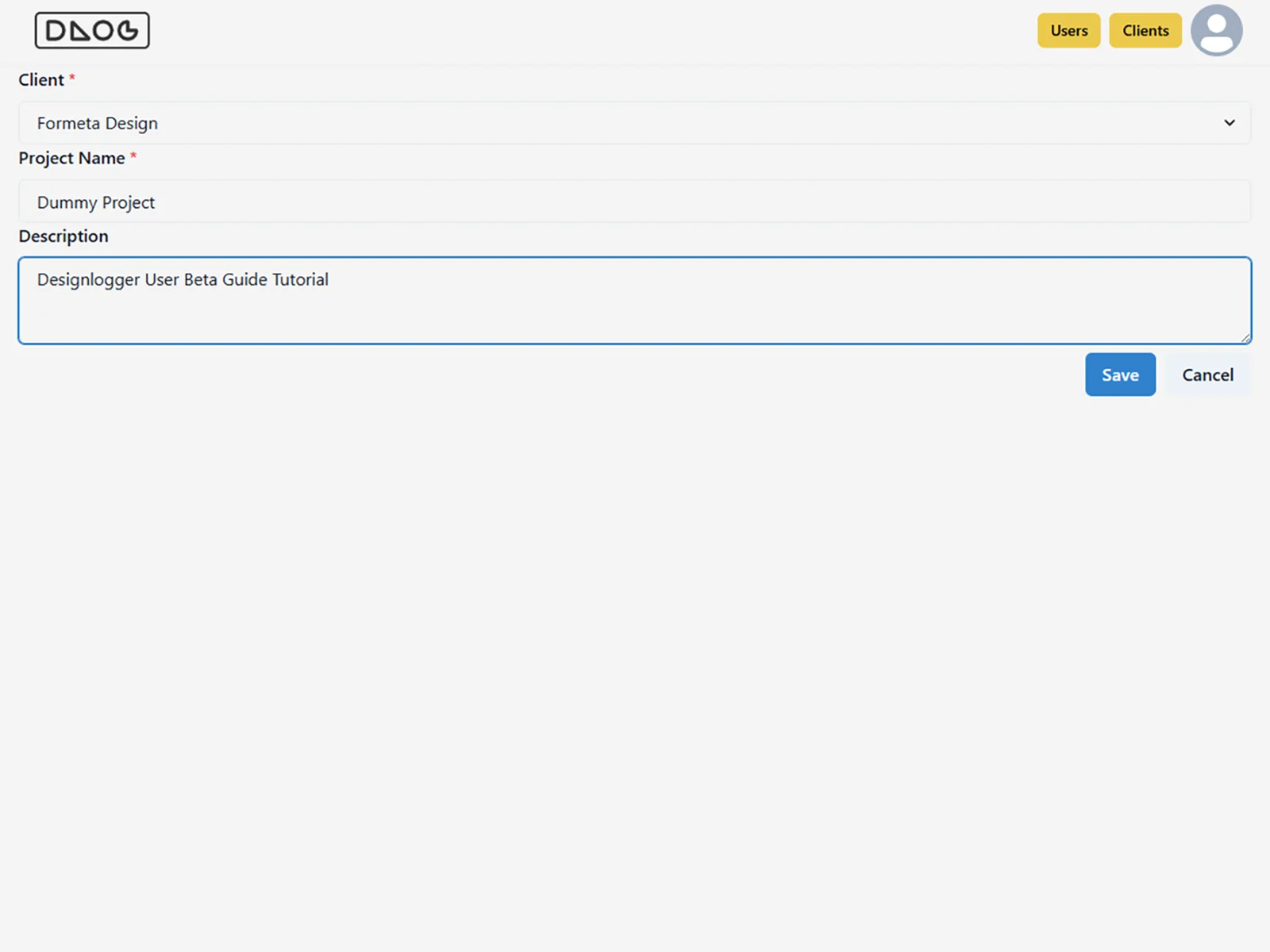
6- Your project is now created and will appear in the app interface with the status New.
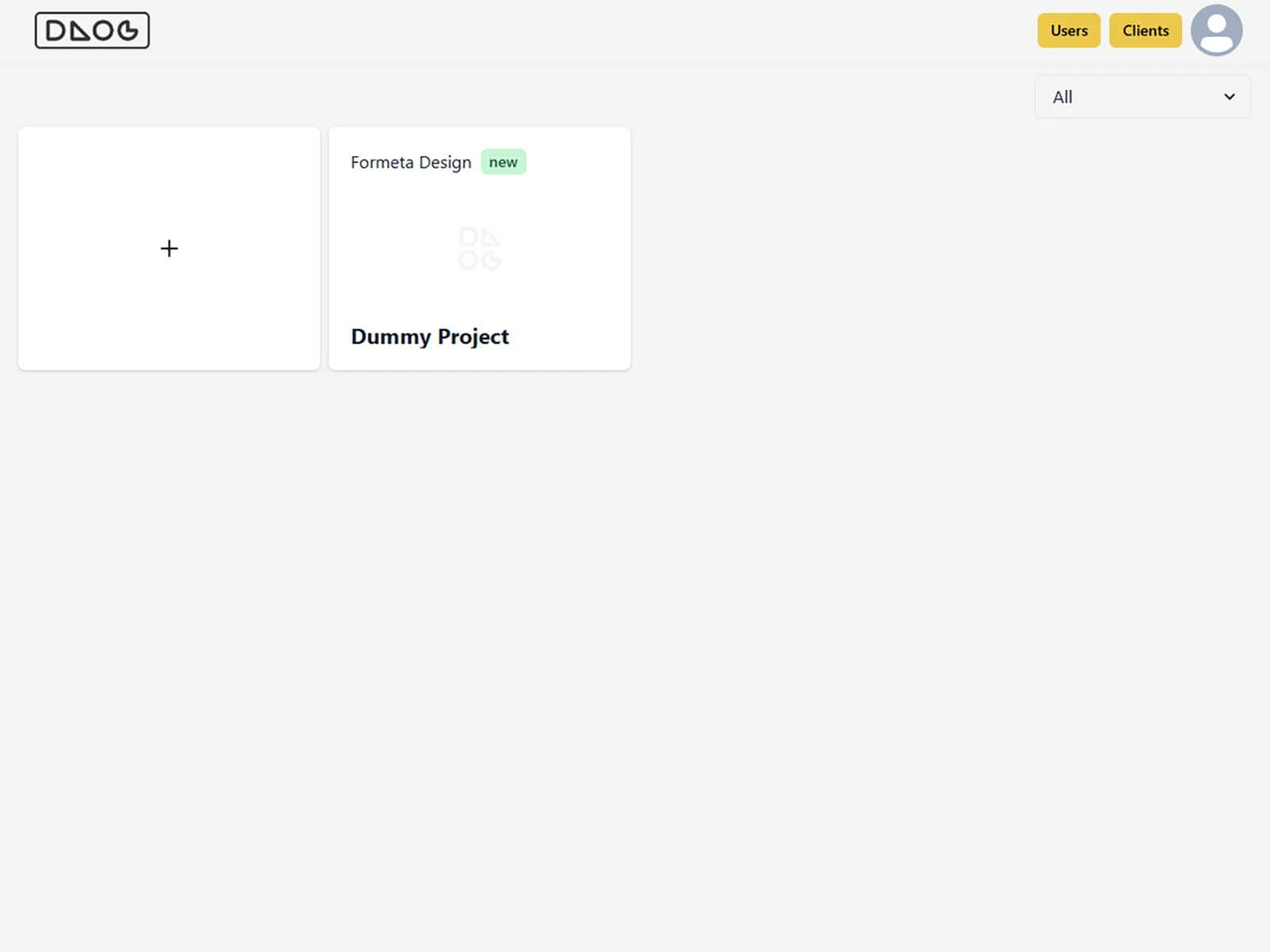
Project Details, Creating Phases, and Closing a Phase
In the Project view, you can upload a project image, add links and resources in the Root section (independent of phases), and create new Phases to structure your work.
Steps
1- Open the project page by selecting your project from the dashboard.
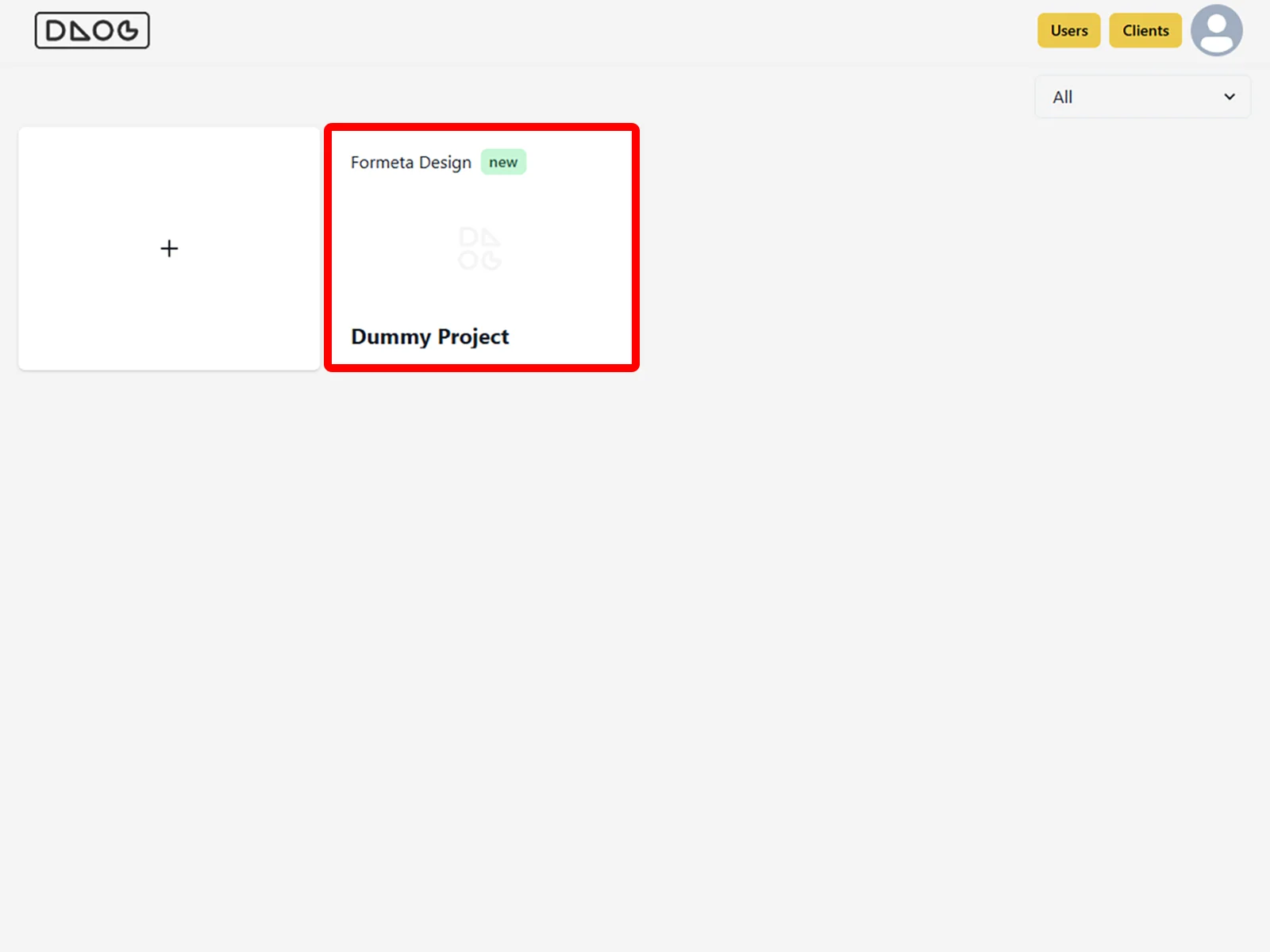
2- Click on the project image area to upload an image that represents your project.
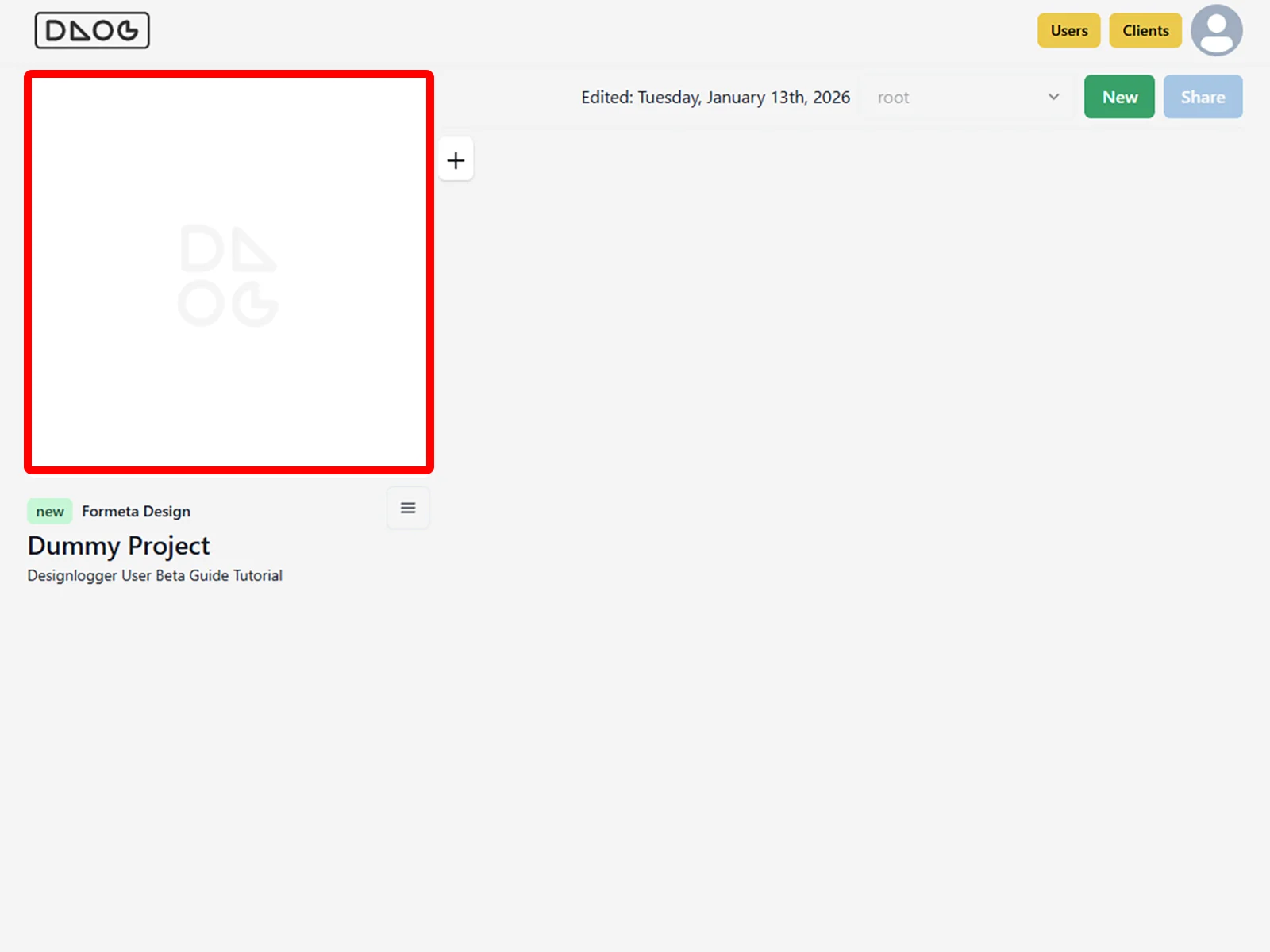
3- You are now in the Root section. Here you can attach any project-related links, inputs, or references that are not tied to a specific phase.
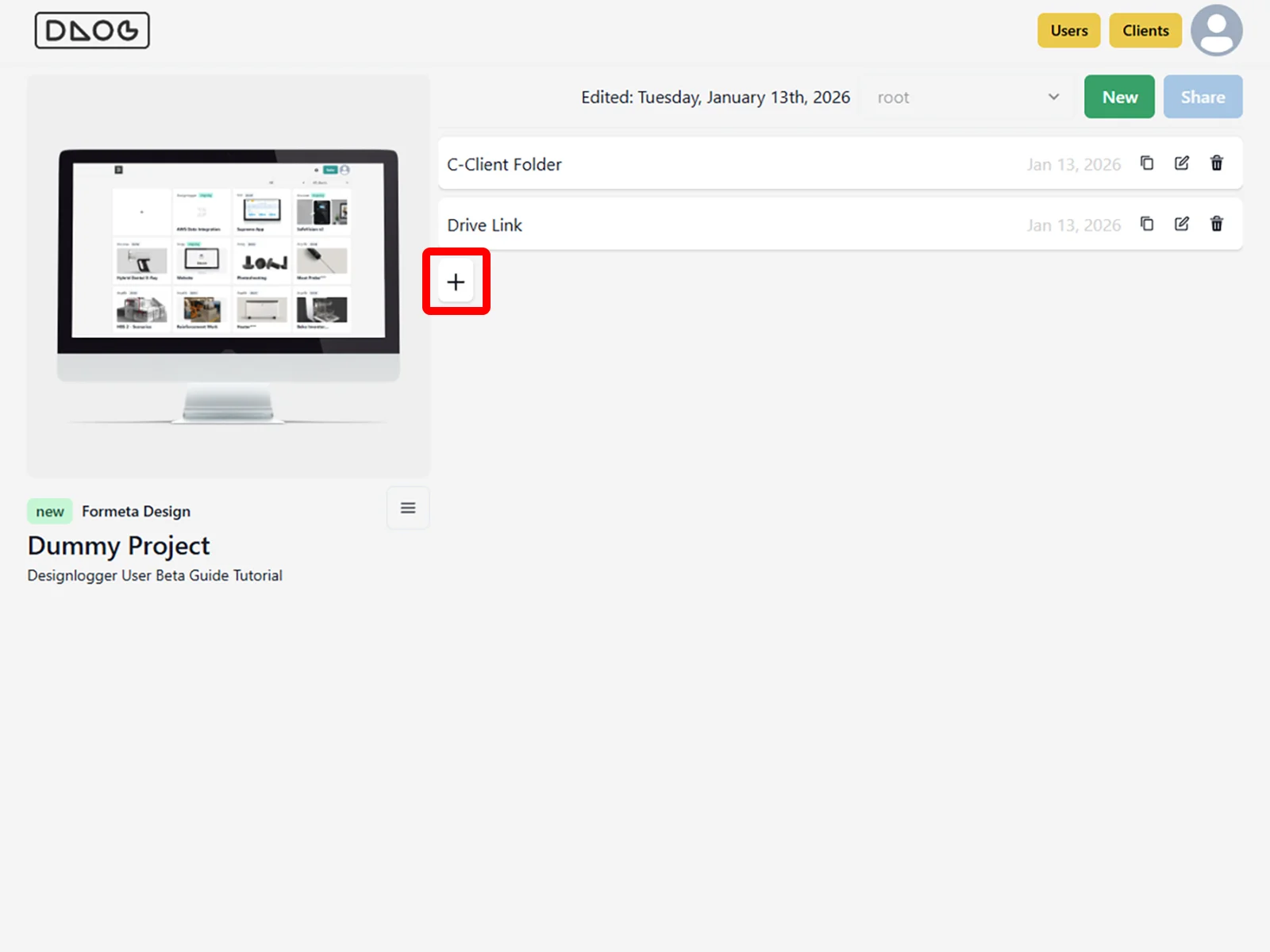
4- Click New and enter a name to create a new Phase. From this point on, you can continue documenting and managing project data within that phase. Once a phase is created, your project status will automatically change to Ongoing.
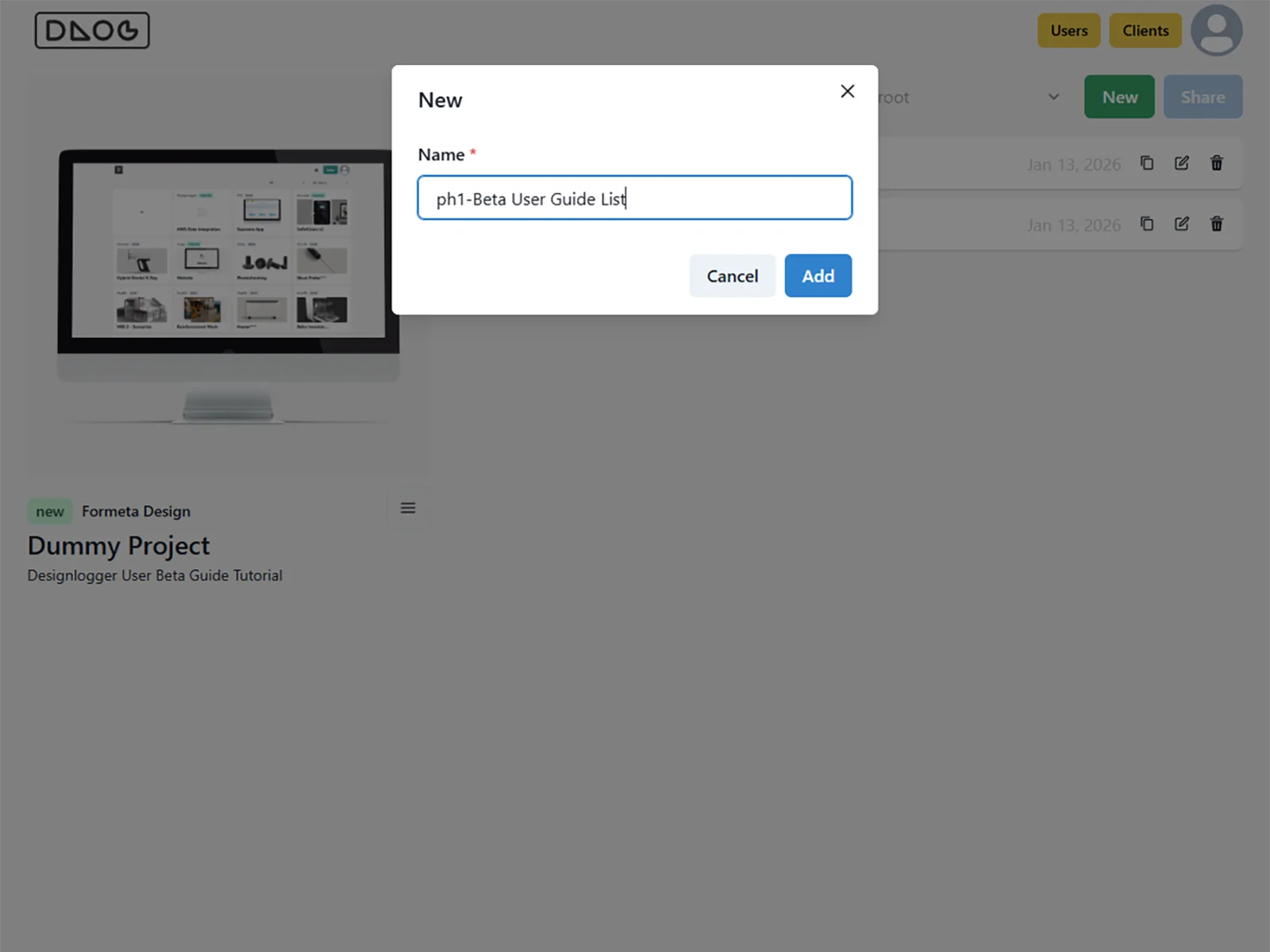
5- You can upload and save as many links as needed.
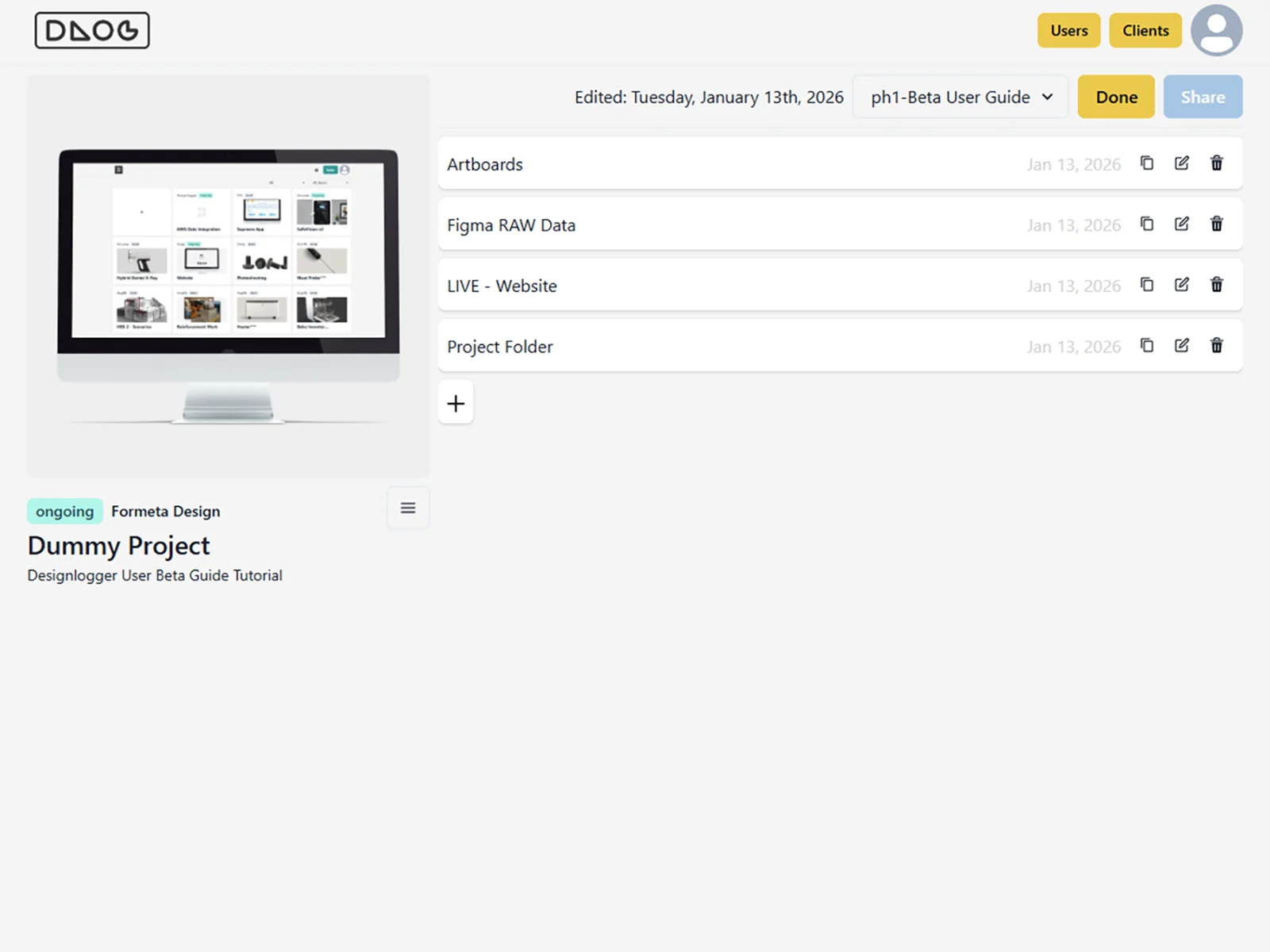
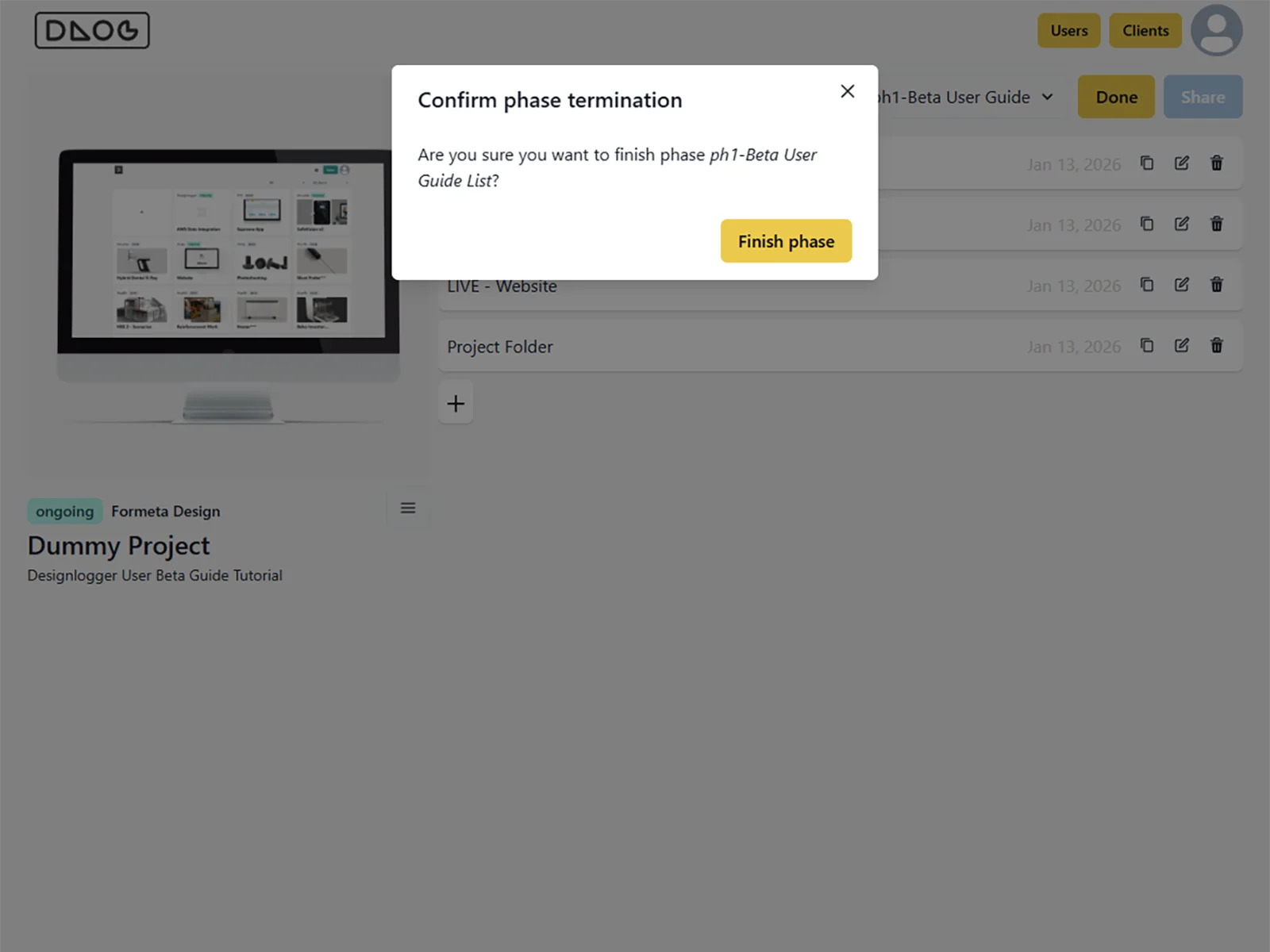
6- When a project phase is completed, click Done to close that phase. This action is restricted to users with the Admin role.
Filtering Phases and Clients
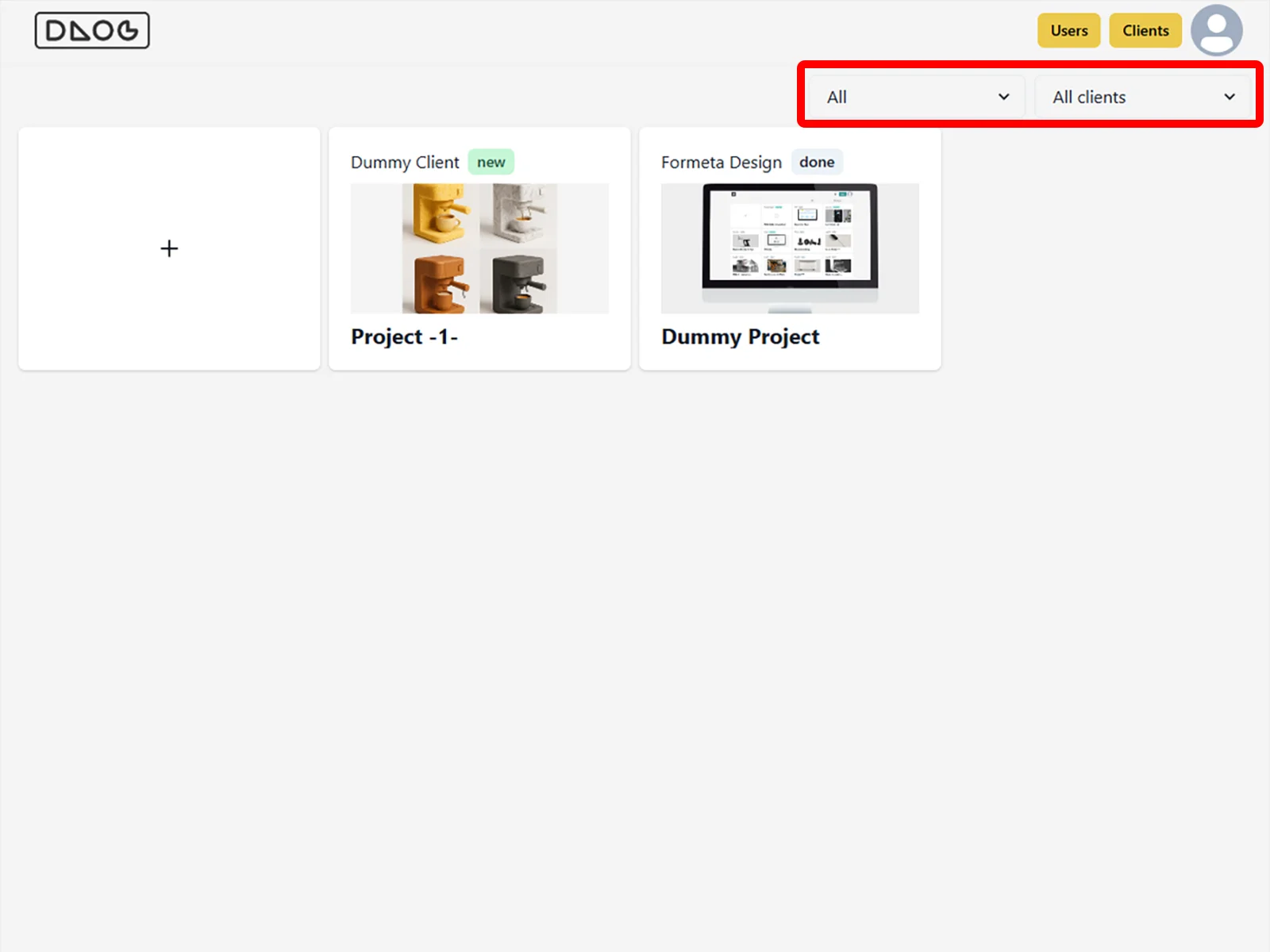
As you add more Clients and Projects, Designlogger helps you stay organized by letting you filter your workspace. Once you create at least two Clients, the Client filter becomes available so you can quickly focus on a specific client. You can also use the Project Status filters to see which projects are New, Ongoing, or Done at a glance.
Invite Clients (Client Access)
To allow clients to view links and shared resources, access in Designlogger is managed at the Client level (not per project). In upcoming releases, we will introduce additional roles for team members.
Steps
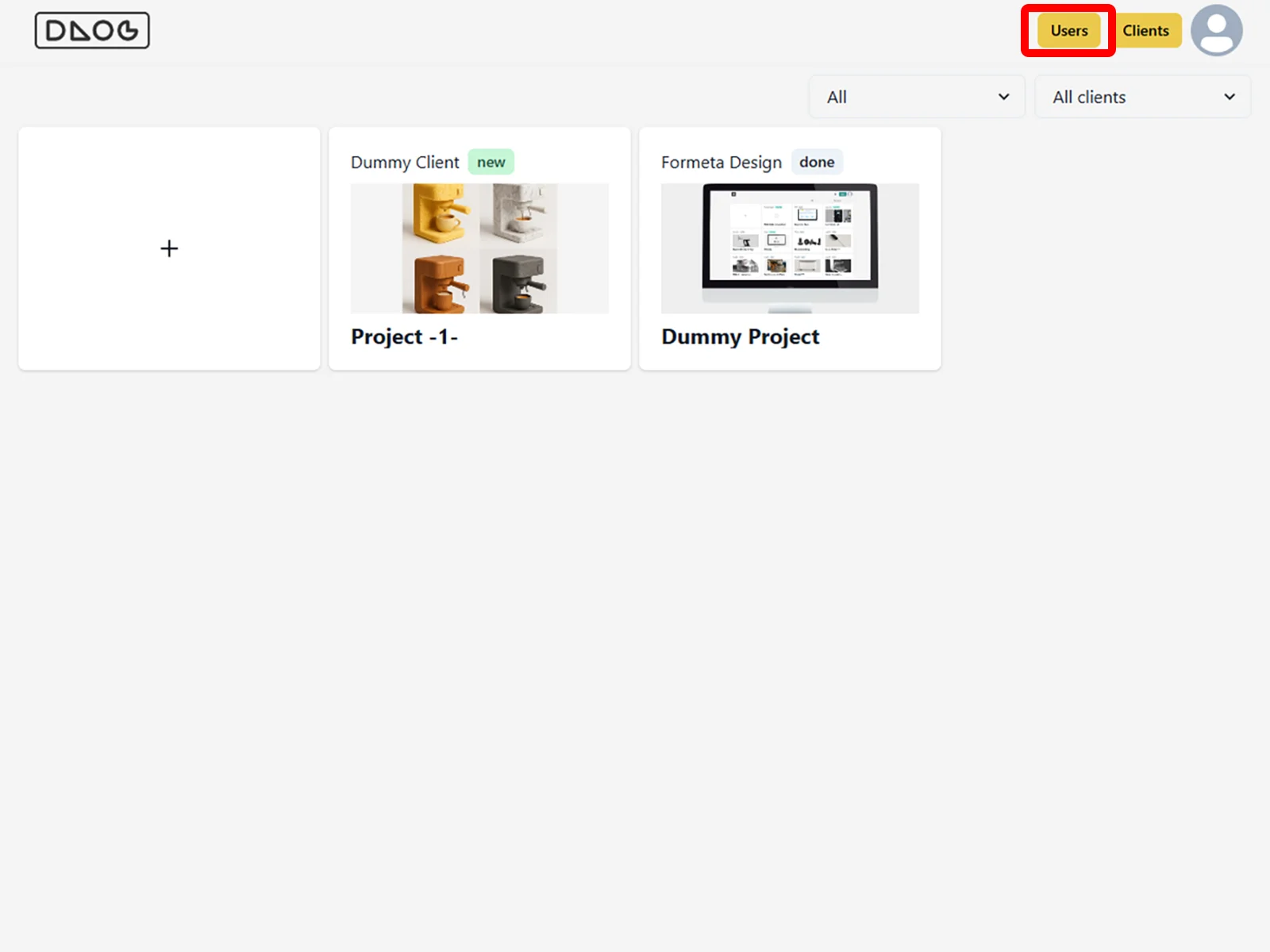
1- Click Users.
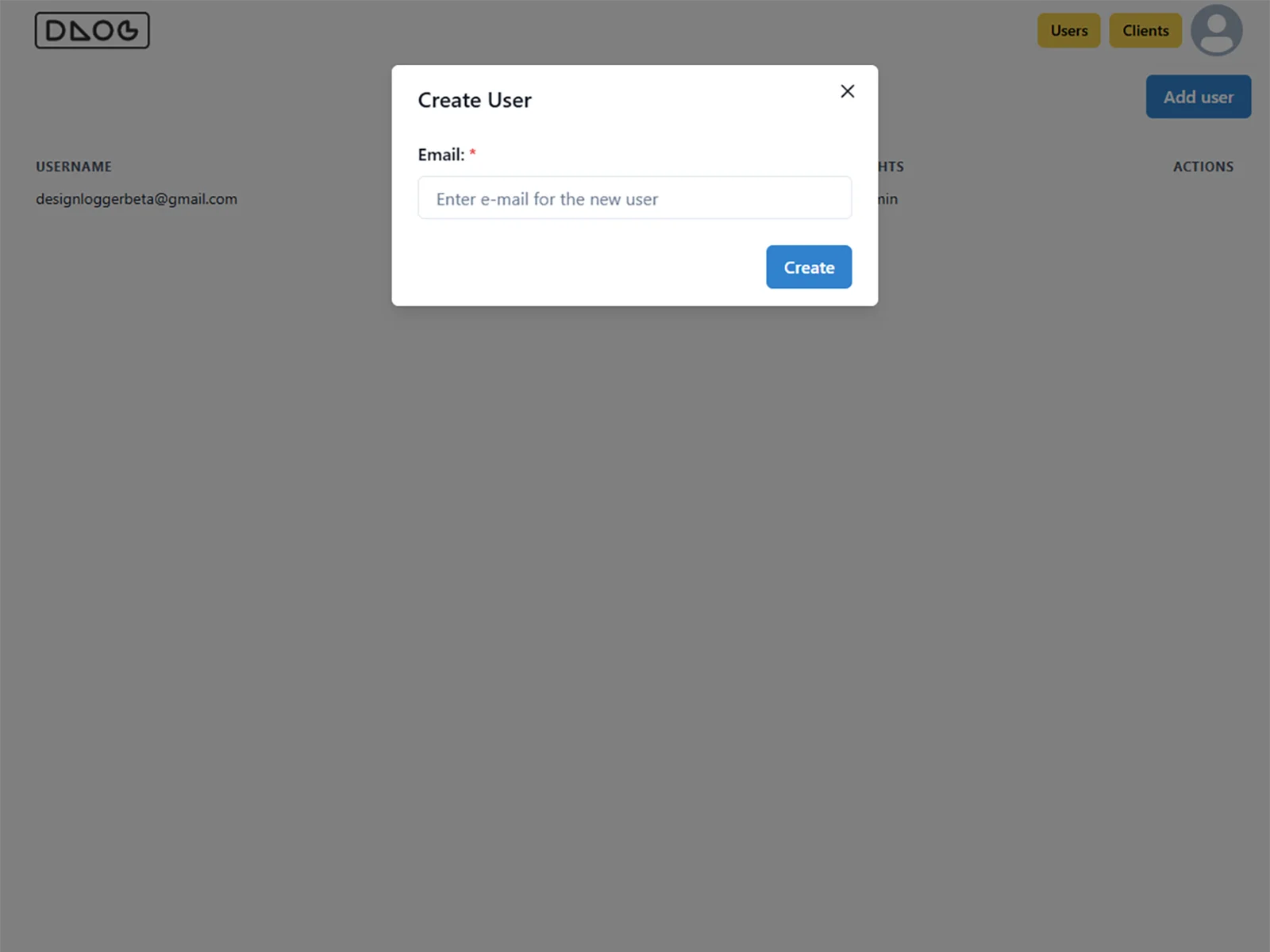
2- Enter the user’s email address.
-
- Select Basic for clients.
- Select Editor for team members who should be able to add or edit links.
3- At this point, the user will receive an invitation email and will be asked to set a password on first sign-in. However, the setup is not complete yet, and you still need to assign the user to the correct Client(s).
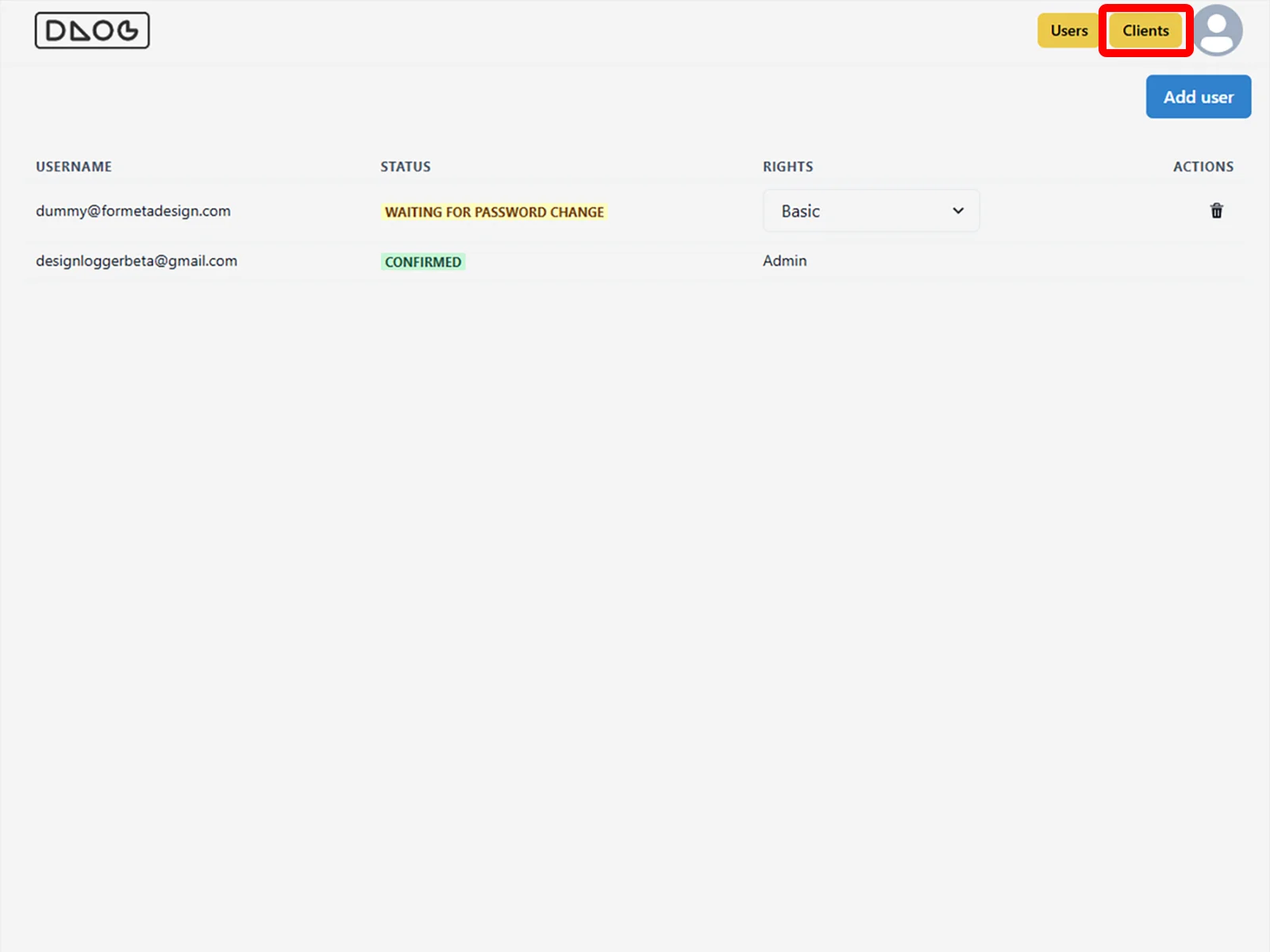
4- Go to Clients and select the Client you want to manage.
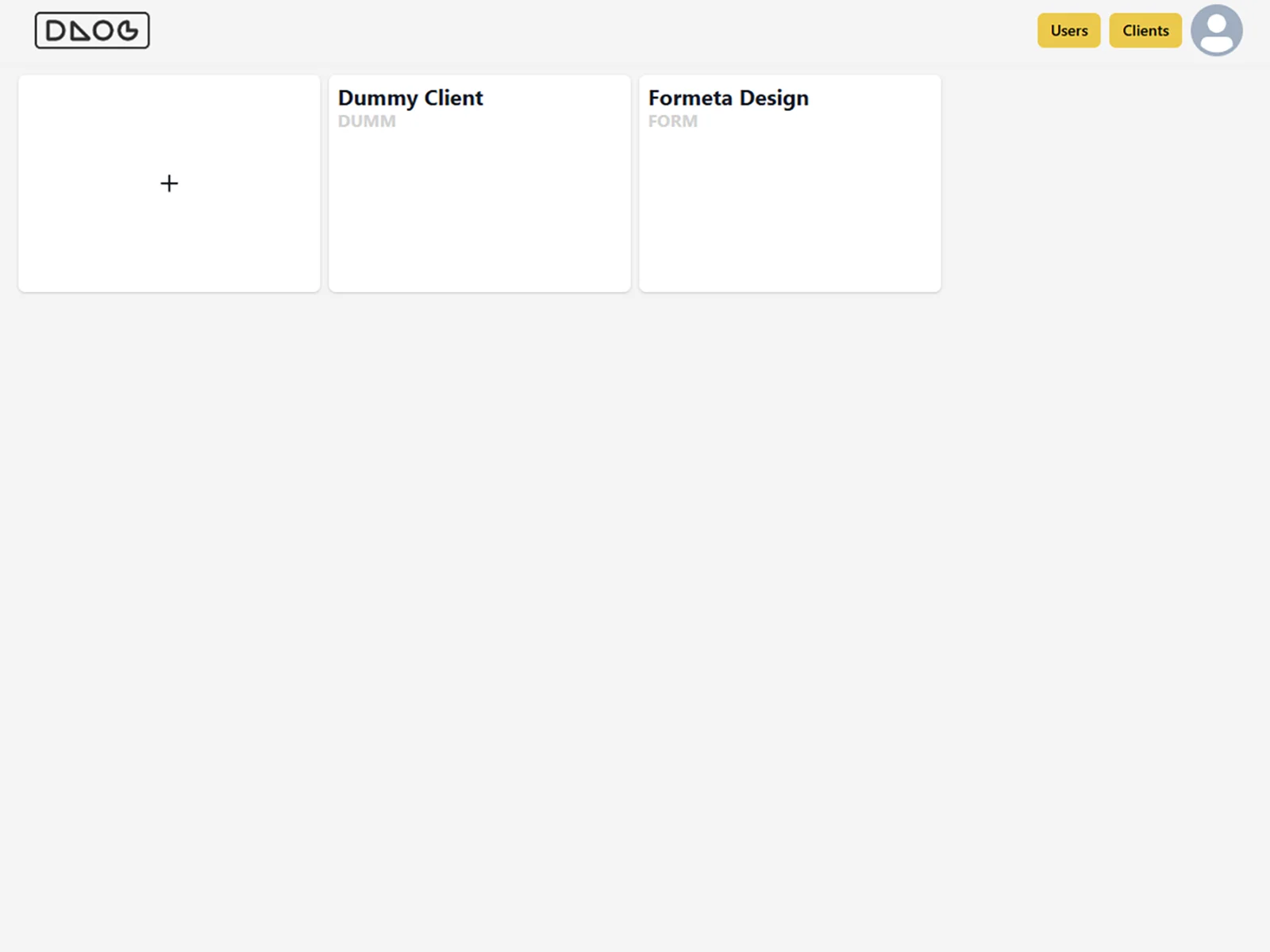
5- Add the email address you just created to that Client.
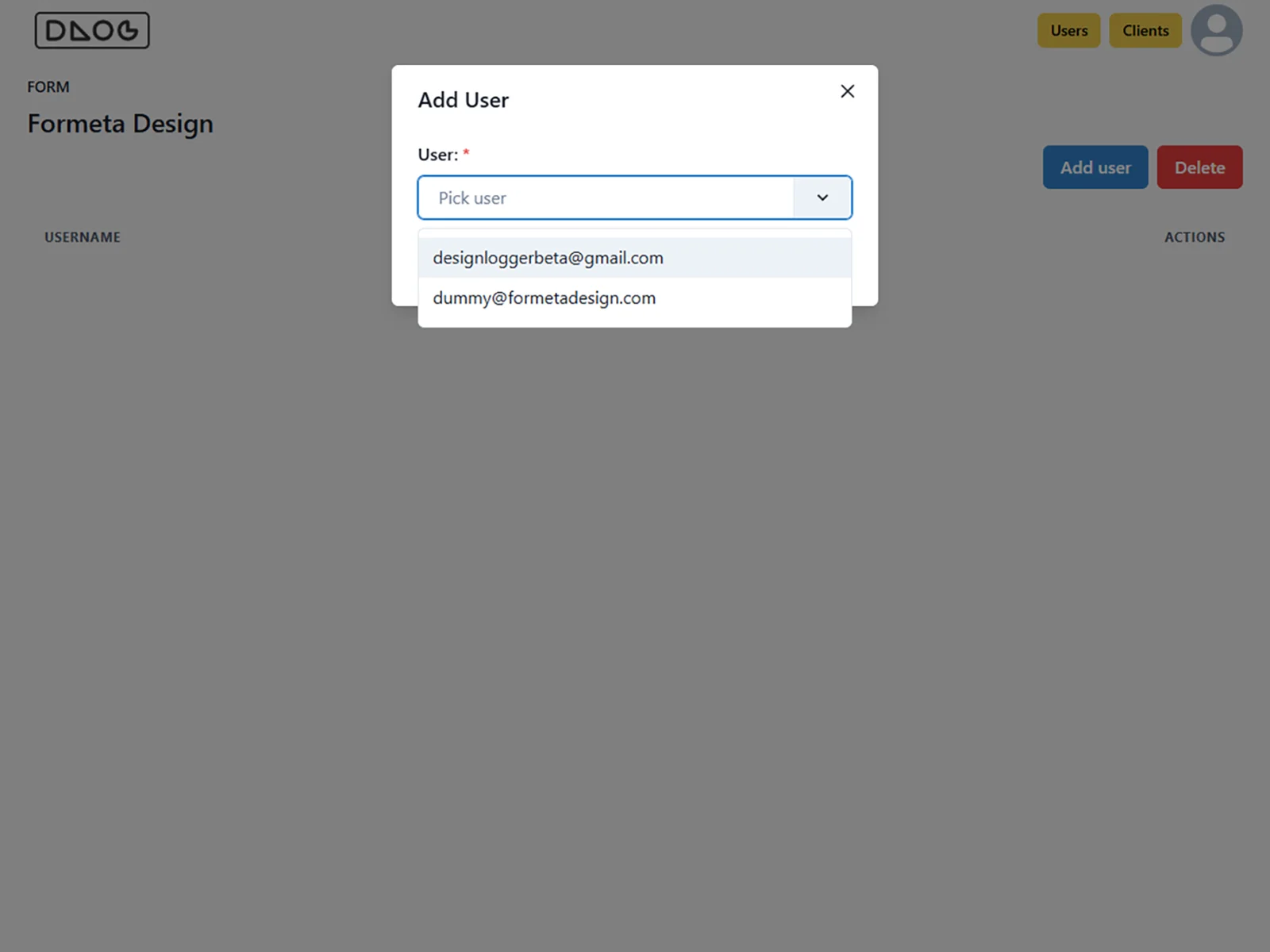
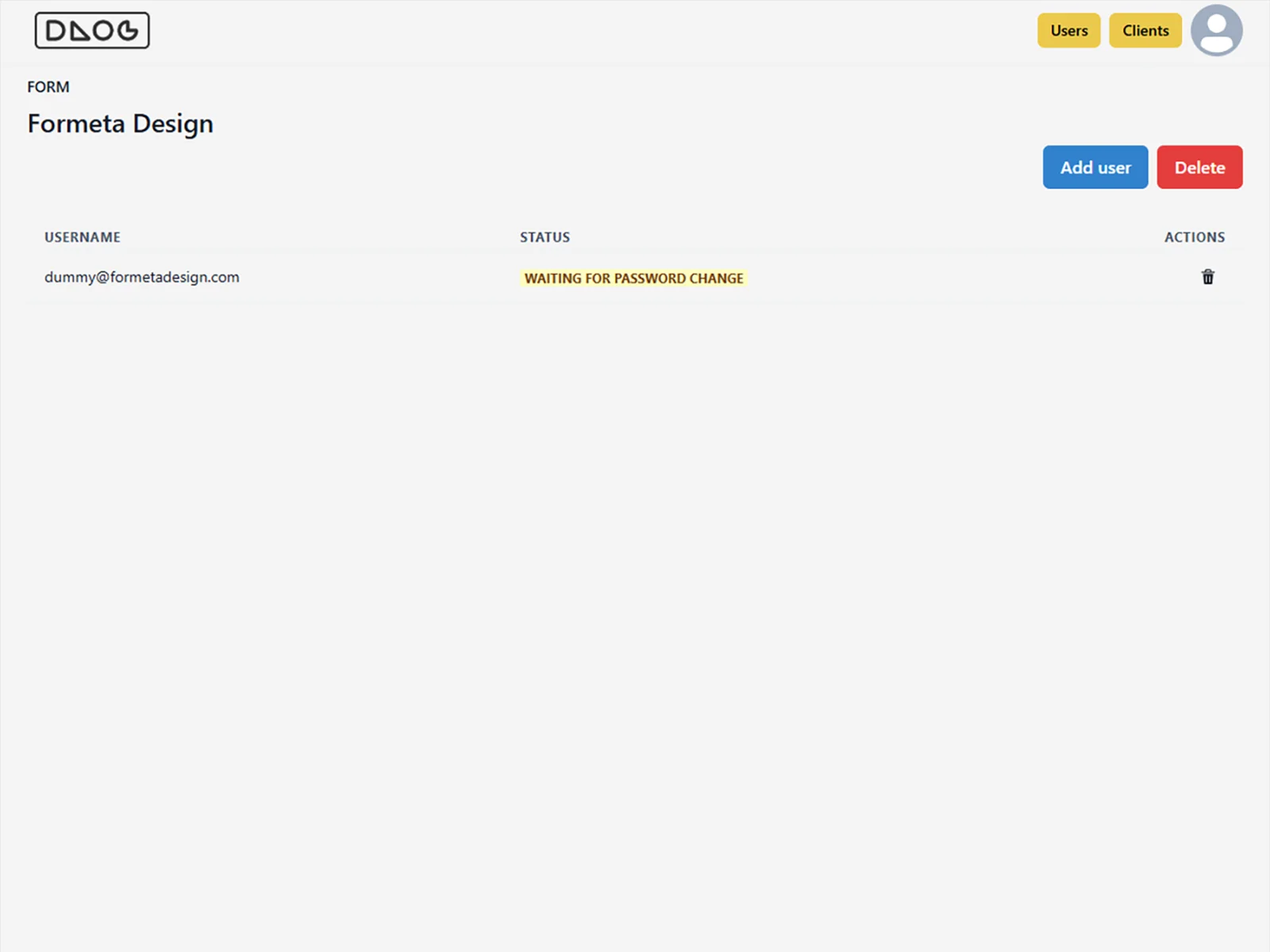
That’s it. The client has now been invited and will be able to access shared Client data and view links after signing in.
Found a bug or have a suggestion?
We’re in beta to improve! Please report any issues or share your ideas by emailing us at admin@designlogger.com